notd features a modern, responsive user interface built with Alpine.js and designed for efficient note-taking and knowledge management. This guide covers the interface components, interactions, and customization options.
Interface Overview
Main Layout
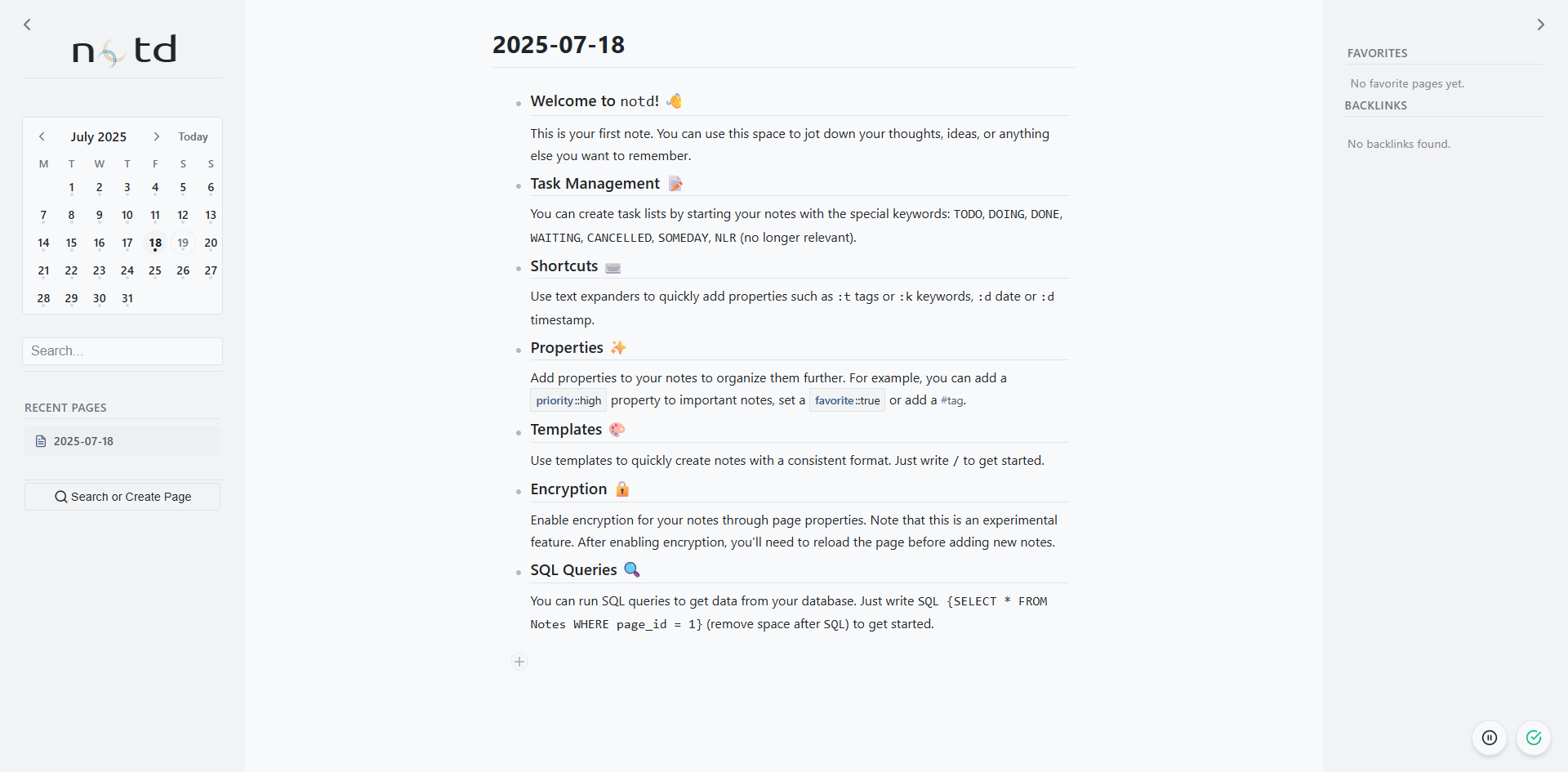
The notd interface consists of several key areas:
- Sidebar - Navigation, search, recent pages, favorites, and calendar
- Main Content Area - Note editing and viewing
- Toolbar - Action buttons and extension access
- Status Bar - Page information and connection status
Responsive Design
notd adapts to different screen sizes:
- Desktop - Full sidebar with extended features
- Tablet - Collapsible sidebar, optimized touch targets
- Mobile - Hidden sidebar with hamburger menu access
Sidebar Components
Global Search
- Search Input - Type to search across all content
- Real-time Results - Results appear as you type
- Result Categories - Pages and notes clearly distinguished
- Quick Actions - Jump to results or create new pages
Recent Pages
- Automatic Tracking - Recently viewed pages appear automatically
- Visual Indicators - Page types and modification dates
- Quick Access - One-click navigation to recent content
Favorites
- Starred Pages - Pages marked with
{favorite::true}
Calendar Widget
- Visual Navigation - Click dates to navigate to journal pages
- Activity Indicators - Dates with content are highlighted
- Month/Year Navigation - Navigate to any date quickly
- Today Highlight - Current date clearly marked
Content Editor
Markdown Editor
- Syntax Highlighting - Code blocks and markdown syntax highlighted
- Auto-completion - Page links auto-complete
- Keyboard Shortcuts - Standard markdown shortcuts supported
Note Actions
Right-click any note for context menu:
- Edit - Modify note content
- Delete - Remove note (with confirmation)
- Copy Link - Copy internal link to note
- Open in Extension - Launch relevant extensions
- Properties - View/edit note properties
Page Actions
Page-level actions in the toolbar:
- New Note - Add note to current page
- Page Properties - View/edit page metadata
- Backlinks - See which pages link here
- Extensions - Access relevant extensions
- Export - Download page content
Interactive Elements
Page Links
- Auto-completion - Type
[[to see page suggestions
Task Elements
- Visual States - Color-coded task status indicators
- Checkboxes - Click to toggle task completion
Property Editor
- Inline Editing - Edit properties directly in content
Keyboard Shortcuts
Global Shortcuts
Ctrl/Cmd + K- Focus global searchCtrl/Cmd + B- Show backlinksCtrl/Cmd + space- Search for page namesShift + space- Search for note contentsEscape- Close modals and panels
Editor Shortcuts
:t- Replaced by{tag::}:k- Replaced by{keyword::}:d- Replaced by{date::<today>}:r- Replaced by{timestamp::<current time>}Tab- Indent note (create sub-note)Shift + Tab- Outdent noteEnter- Create new note at same levelCtrl/Cmd + Enter- Create new note as child
Themes and Customization
Color Schemes
notd supports multiple color schemes:
- Light Theme - Clean, bright interface for day use
- Dark Theme - Eye-friendly dark mode for low-light environments
- Auto Theme - Follows system preferences
- Custom Themes - CSS customization support
Typography
- Font Selection - Choose from system fonts or web fonts
- Size Scaling - Adjust text size for readability
- Line Spacing - Customize line height for comfort
- Code Fonts - Separate monospace font for code blocks
Layout Options
- Sidebar Width - Adjustable sidebar size
- Content Width - Limit or expand content area
- Density - Compact or spacious interface modes
- Animation - Enable/disable interface animations
Mobile Interface
Mobile-Specific Features
- Bottom Toolbar - Quick actions at thumb reach
Extension UI Integration
Extension Buttons
- Context Menus - Extension actions in right-click menus
Visual Consistency
- Icon System - Feather icons for consistent visual language
- Color Coordination - Extensions follow main theme colors
- Typography - Consistent fonts and sizing across extensions
- Interaction Patterns - Standard interaction behaviors
Customization Tips
Personal Workflow
- Organize Favorites - Curate your most-used pages
- Configure Extensions - Set up extensions for your workflow
- Customize Shortcuts - Learn and use keyboard shortcuts
- Theme Selection - Choose themes that work for your environment
Team Collaboration
- Naming Conventions - Establish consistent page/note naming
- Property Standards - Define standard properties for your team
- Template Creation - Build reusable templates for common patterns
- Extension Configuration - Configure extensions for team workflows
The notd interface is designed to get out of your way and let you focus on your thoughts and ideas while providing powerful tools when you need them.