Get up and running with notd’s powerful frontend features in minutes. This guide covers the essential features you need to know to be productive immediately.
First Steps
1. Understanding the Interface
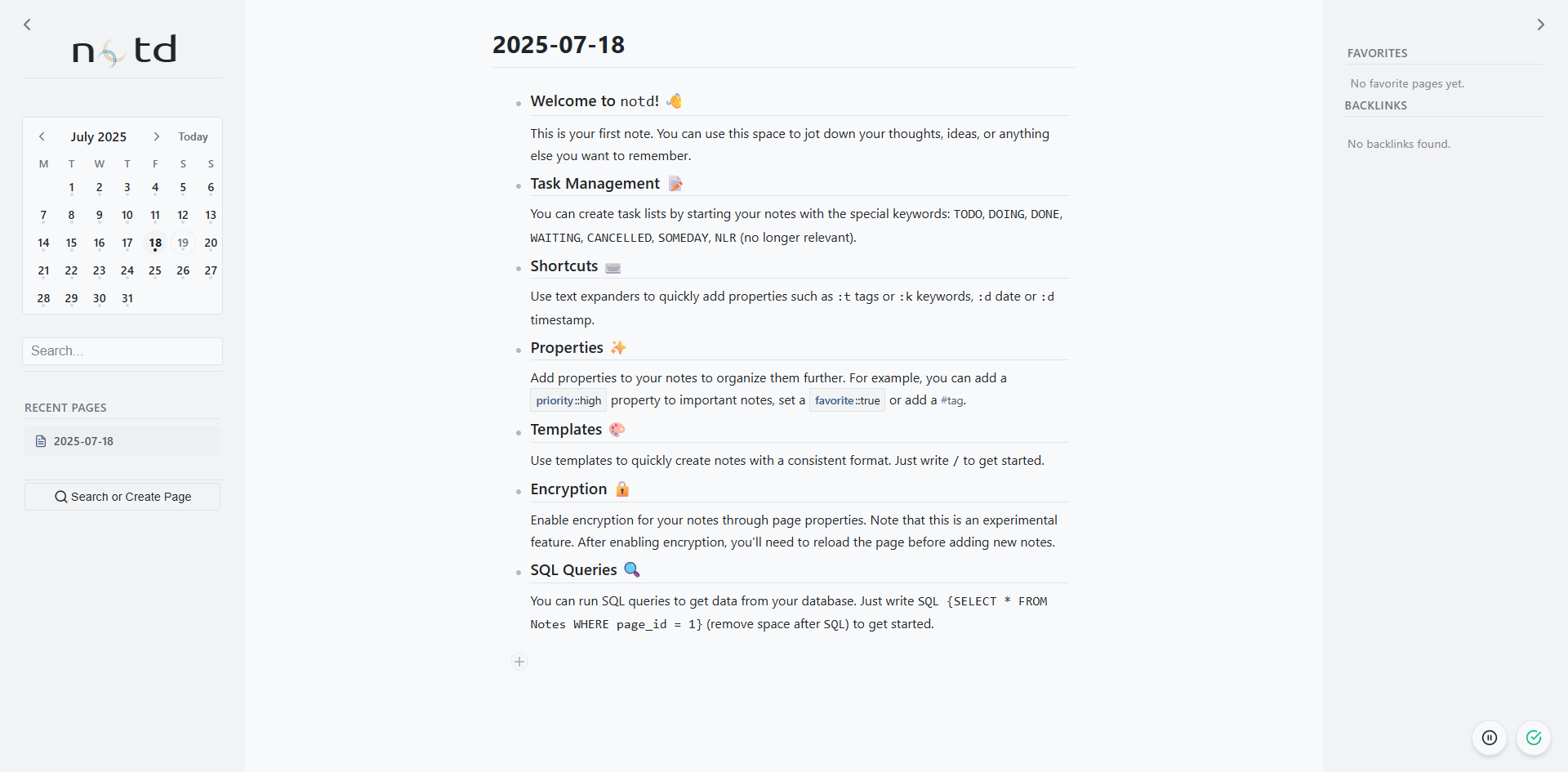
When you first open notd, you’ll see:
- Sidebar (left) - Navigation, search, and quick access
- Main area (center) - Your notes and content
- Today’s date - notd starts with today’s journal page
2. Create Your First Note
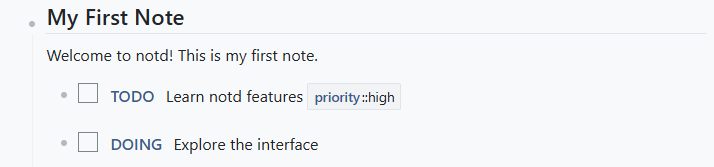
Click in the main area and start typing:
| |
NOTE: Each task must be a separate note.
3. Try Essential Features
Create a page link:
| |
Add properties:
| |
Create a task:
| |
Essential Features Tour
Page Linking and Navigation
Create connections between ideas:
| |
Use backlinks to discover connections:
- Any page that links to the current page shows up in backlinks
- Find unexpected relationships in your notes
- Navigate between related concepts quickly
Backlinks are visible in the right sidebar and their context can be shown with ctrl + b
Task Management
Use different task states:
| |
Search and Discovery
Use global search (Ctrl+K or shift + space):
- Type anything to find it across all your notes
- Search by content: “project planning”
- Search by properties: “priority::high”
- Search by task status: “TODO”
Quick navigation:
- Recent pages - See your recently viewed content
- Favorites - Mark important pages with
{favorite::true} - Calendar - Navigate to any date’s journal page
Properties for Organization
Common property patterns:
| |
Create property-based queries:
| |
Power User Features [DOCUMENTATION NOT UPDATED YET]
SQL Queries in Notes
Create dynamic content with SQL:
| |
Transclusion for Reusable Content
Create reusable content blocks:
| |
To transclude the note (and its children) elsewhere, right click on the bullet an choose “Copy transclusion link”. Transclusions are inserted as
| |
Encryption for Sensitive Content
Protect sensitive information. Click the gear icon besides the page title, and select Encrypt. The notes will be encrypted client-side and are NOT recoverable if you lose the key.
Daily Workflow Examples [DOCUMENTATION NOT UPDATED YET]
Morning Planning
| |
Project Organization
| |
Meeting Notes
| |
Quick Tips
Productivity Tips
- Start with today’s date - Use journal pages for daily planning
- Use favorites - Mark important pages for quick access
- Consistent properties - Develop standard property names
- Link liberally - Connect related ideas with page links
- Search everything - Use Ctrl+K to find anything quickly
Organization Tips
- Hierarchical pages - Use
Project/Subproject/Detailsnaming - Property conventions - Establish team standards for properties
- Template pages - Create reusable page templates
- Regular reviews - Use SQL queries for progress tracking
- Backlink exploration - Discover unexpected connections
Workflow Tips
- Morning routine - Start each day with today’s journal page
- Weekly reviews - Use SQL queries to review completed work
- Project hubs - Create central pages for each major project
- Meeting templates - Standardize meeting note formats
- Archive old content - Use properties to mark completed projects
Next Steps
Once you’re comfortable with these basics:
- Explore Extensions - Try the Kanban board, Excalidraw editor, and other extensions
- Advanced Features - Learn about encryption, advanced SQL queries, and automation
- Customization - Configure themes, shortcuts, and interface preferences
- Team Collaboration - Set up shared conventions and workflows
notd grows with you - start simple and gradually adopt more advanced features as your needs evolve.