Rich Text Editing with Markdown
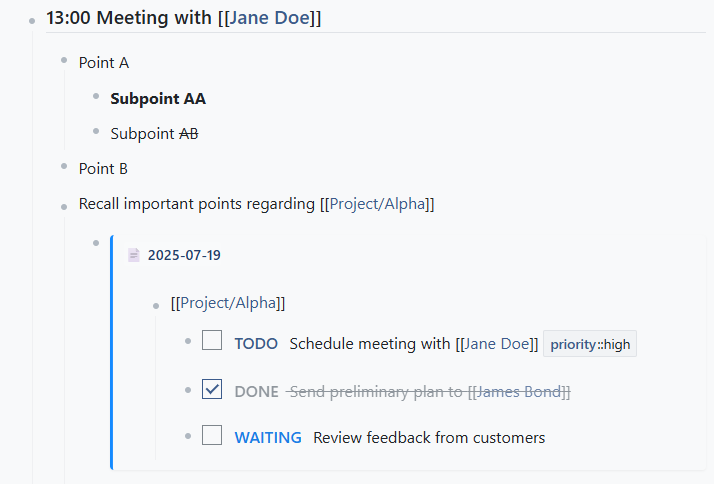
notd uses Markdown for formatting notes with live preview capabilities. The editor supports:
- Headers using
# ## ### - Lists with
-or1. - Links using
[text](url) - Code blocks with triple backticks
- Emphasis with
*italic*and**bold**
Page Links
Create internal links to other pages using double square brackets:
| |
This creates a clickable link to the specified page. If the page doesn’t exist, it will be created when clicked.
SQL Queries in Notes [DOCUMENTATION NOT UPDATED YET]
Execute dynamic SQL queries directly within your notes using the SQL{} syntax:
| |
This powerful feature allows you to:
- Generate dynamic lists of pages
- Create custom reports
- Build interactive dashboards
- Query your data in real-time
SQL Query Examples
List all pages updated today:
| |
Find notes with specific properties:
| |
Transclusion
Embed content from other notes or pages using transclusion:
| |
This feature allows you to:
- Reuse content across multiple notes
- Create modular documentation
- Build dynamic content that updates automatically
- Reference shared information
Client-Side Encryption
Protect sensitive content by opening page properties and clicking “Encrypt”. Note that encryption happens client-side, and content will NOT be recoverable if you lose the key.
How Encryption Works
- Content is encrypted client-side before being sent to the server
- Uses the SJCL (Stanford JavaScript Crypto Library) for AES-256
- Password-protected - only you can decrypt your content
- Server never sees the unencrypted content
Setting Up Encryption
To use encryption:
- Open page properties and click “Encrypt”
- You’ll be prompted for a password when viewing the page
Encryption Best Practices
- Use strong, unique passwords
- Don’t forget your password - there’s no recovery mechanism
- Consider using encryption for personal notes, passwords, or sensitive data
- Encrypted content won’t appear in search results for other users
Properties System
Add metadata to notes and pages using the property syntax:
| |
Common Properties
{status::todo}- Mark as a task{priority::high}- Set priority level{category::work}- Categorize content{favorite::true}- Add to favorites
Property Weights
::(weight 2) - Public properties, visible in UI:::(weight 3) - Internal properties, for system use::::(weight 4) - System logs, automatic tracking